¶ Windows Store configuration
This entry will try to point out typical misconceptions about all settings related to the Windows Store using Intune. Please note that it is specifically aimed at Intune using CSPs, which in this case requires a Windows Enterprise/Education license for most settings shown here (verify by visiting the CSP documentation linked here). The behavior using different methods of configuration should be similar, but is not guaranteed.
¶ Block user access | Allow store updates
There are two methods available to achieve this. Currently, both methods provide the same outcome, with the exception of WinGet availabiltiy. Microsoft usually points at the second method described here
¶ Method 1: Using "Require private store only"
There is only one setting required to block access to the store and it is called "Require private store only". Keep in mind that if the store is disabled for a long time, app updates will happen at this point. Consider configuring delivery optimization to avoid network congestion.
This setting can be applied to the user or to a device:
- It is possible to scope this setting to a user so that an admin can access the store while a normal user cannot.
- If scoped to a device, all users on that device cannot access the store.
- WinGet will continue to work, you can configure it by configuring the App Installer
¶ Method 2: Using "Turn off the Store application"
Two settings are required to block the store while still allowing built-in applications to be updated.
- RemoveWindowsStore _1(User) or _2(Device). This setting is ADMX-based, which means that other configurations (GPO or security tools) may interfere with this setting. Set this to "Enabled". Both the user and device settings have a note that reads "If you enable this setting, you will be denied access to the Store application. Access to the Store is required to install application updates." so we also need the following setting.
- AllowAppStoreAutoUpdate: Does what it says: Control the automatic update of Store applications. Set this to "Allowed.". If you don't set this preference and users have access to the store, they can disable it themselves
The ability to use WinGet (aka App Installer) to install applications is also removed by using RemoveWindowsStore.
¶ User Experience
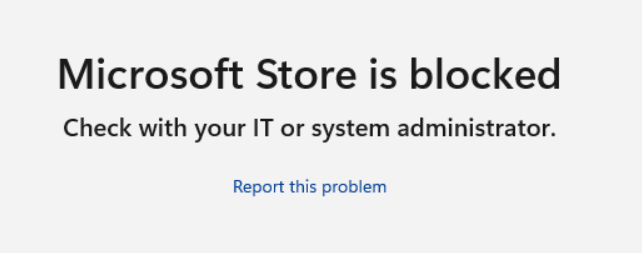
In both cases, the user experience when launching the store looks like this:
¶ Importance of automatic Windows Store updates
Unless you have very specific requirements, you should not configure the following settings because they will prevent automatic Store updates. As of May 2023, the only automatic offline update feature available through Microsoft using Configuration Manager is disabled, after being deprecated since November 2021. In other words, updates to built-in applications will be done automatically online or using Winget (via scripts). Manual deployment is possible through using the download command from WinGet
While there are other settings like "Turn off Automatic Download of updates on Win8 machines", only settings that apply to supported Windows 10 an higher will be discussed here. You shouldn't configure settings that don't apply to your operating system, as this could have unintended consequences.
Both methods described earlier will update apps on their own schedule. As of January 2024 there is no reliable way to trigger store updates when the store access is disabled.
¶ Consequences of not updating built-in apps
- Security issues are not fixed
- Upgrading to newer versions of the operating system may cause applications to stop working (calculator, photos, sticky notes...)
- Documented features may be missing from applications, resulting in a poorer user experience
¶ Setting: "Disable all apps from Microsoft Store"
DisableStoreOriginatedApps
This not only turns off apps (yes, all of them), it also prevents those apps from receiving store updates. As a reminder, depending on your scenario, you may still need to update these apps for security reasons.
¶ Setting: "Do not connect to any Windows Update Internet locations"
This settings was commonly set to seemingly only allow updates from a defined WSUS server (it's also only in effect while one is configured). In reality it prevents store udpates and prevents subscription activation amongst others
¶ Other store related settings
If you set one of the following settings, you might encounter unexpected behavior. Verify that if you want to allow the above described scenario (Block user access | Allow store updates) these should not be configured.
¶ "Turn off access to the Store"
This setting, as Rudy points out, does not disable access to the store, but rather the option to point to the store for unknown file types. It does not prevent "open with", you have to configure ShellNoUseStoreOpenWith_1 for that additionally.
¶ "Turn off access to all Windows Update features"
RemoveWindowsUpdate_ICM: While this setting does not prevent Store applications from updating, it does prevent the user from adding optional features (including language packs) and from searching for updates online.
¶ Persistence of apps through wipe
When 'System' is selected as the installation context for UWP applications using the Microsoft Store (new) method in Intune, they are added to the operating system's provisioned packages. This means that applications installed this way will survive a wipe (with no options selected), a fresh start, and an Autopilot reset. However, after these actions, the application will appear as if uninstalled in the company portal, even though it is installed and available to the user.

¶ Network requirements
Store updates are a cloud service. As such, if working with a proxy or firewall, the following URLs need to be reachable in both the system and user context.